
A QR code stores text in a square pattern that a camera can decode. It can contain a web address, contact details, Wi-Fi information, or ordinary text. The code does not verify that its content is trustworthy, so creation and scanning both require a few checks.
Reliable QR codes use strong contrast, enough quiet space around the pattern, and a size appropriate for the scanning distance. Safe scanning means reading the decoded destination before opening it.
Choose the exact content
For a website, use the final HTTPS URL and remove unnecessary tracking parameters unless campaign measurement is intentional. Test the destination directly in a browser before encoding it. Shorter content usually creates a less dense pattern that is easier to scan at small sizes.
A QR code is not automatically dynamic. If it contains a direct URL, changing the destination later requires a new code unless the URL points to a redirect you control.
Generate for reliable scanning
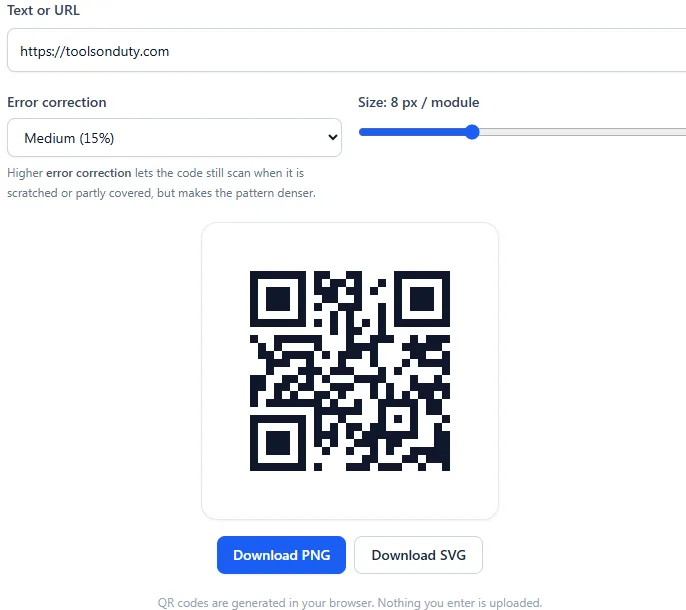
Use dark modules on a light background and keep the border clear. Decorative colors can work, but low contrast and busy backgrounds reduce reliability. Export at enough resolution for the intended print size.
- Do not crop the empty quiet zone around the code.
- Avoid stretching the image out of square proportions.
- Keep logos small and use appropriate error correction.
- Test from more than one phone before printing in quantity.
Inspect before opening
QR stickers can cover legitimate codes in restaurants, parking areas, and payment locations. After scanning, read the displayed domain carefully. Watch for misspellings, unexpected URL shorteners, unusual payment requests, and pages asking for credentials.
When a code comes from an image, decode it first and copy the text if necessary. Opening should be a separate decision, not an automatic consequence of scanning.
Test the printed version
A code that scans from a monitor can fail after printing because of blur, glare, folds, or insufficient size. Print a sample at final dimensions, place it in realistic lighting, and test from the expected distance.
Try the related tools
Apply the steps from this guide directly in your browser.
Frequently asked questions
Can a QR code expire?
A direct QR code does not expire, but the URL or service it points to can change, stop working, or impose its own expiration.
Can scanning a QR code infect my phone?
Scanning only reveals data, but opening a malicious destination or installing a prompted application can create risk. Inspect the result first.
Why will my printed QR code not scan?
Common causes include low contrast, a missing quiet zone, small size, blur, distortion, glare, or too much embedded data.