
Receipt Review Studio
Extract receipt fields and line items locally, compare them beside the source image, correct errors and run arithmetic validation before export.
Document Intelligence Studio
Receipt Review Studio
Extract locally, compare against the source image, correct every value and export only after financial review.
Source preview
Extracted fields
Line-item review
Validation warnings
- • Merchant was not detected.
- • Transaction date was not detected.
- • Total was not detected.
About the Receipt Review Studio
Receipt Review Studio treats OCR output as a draft that must be verified, not as guaranteed financial data. Upload a clear receipt image and run local OCR to detect common header, payment and amount fields.
The source image remains visible beside editable merchant, date, receipt number, currency, payment method, subtotal, tax and total fields. Detected line items can be corrected, removed or supplemented before export.
Arithmetic checks flag mismatches between subtotal plus tax and total, and between line-item amounts and subtotal. Raw recognized text remains available so uncertain values are never hidden behind the structured result.
Recognition and review run in the browser after the selected language model loads. Export reviewed data as CSV or JSON only after comparing names, dates, decimal points, currency and totals against the source.
Key features
- Side-by-side source image and extracted data
- Six OCR languages
- Merchant, date and receipt-number fields
- Subtotal, tax, total, currency and payment method
- Editable line-item rows
- Add and remove item controls
- Arithmetic validation warnings
- Editable raw OCR text
- Built-in review checklist
- Local processing with CSV and JSON exports
How to use
- 1Upload a flat, sharp receipt photo with all edges visible.
- 2Select the primary document language and run extraction.
- 3Compare every extracted header and amount field against the source image.
- 4Correct, remove or add line items as required.
- 5Resolve arithmetic warnings and verify decimal points and currency.
- 6Export CSV or JSON only after completing the review.
Examples
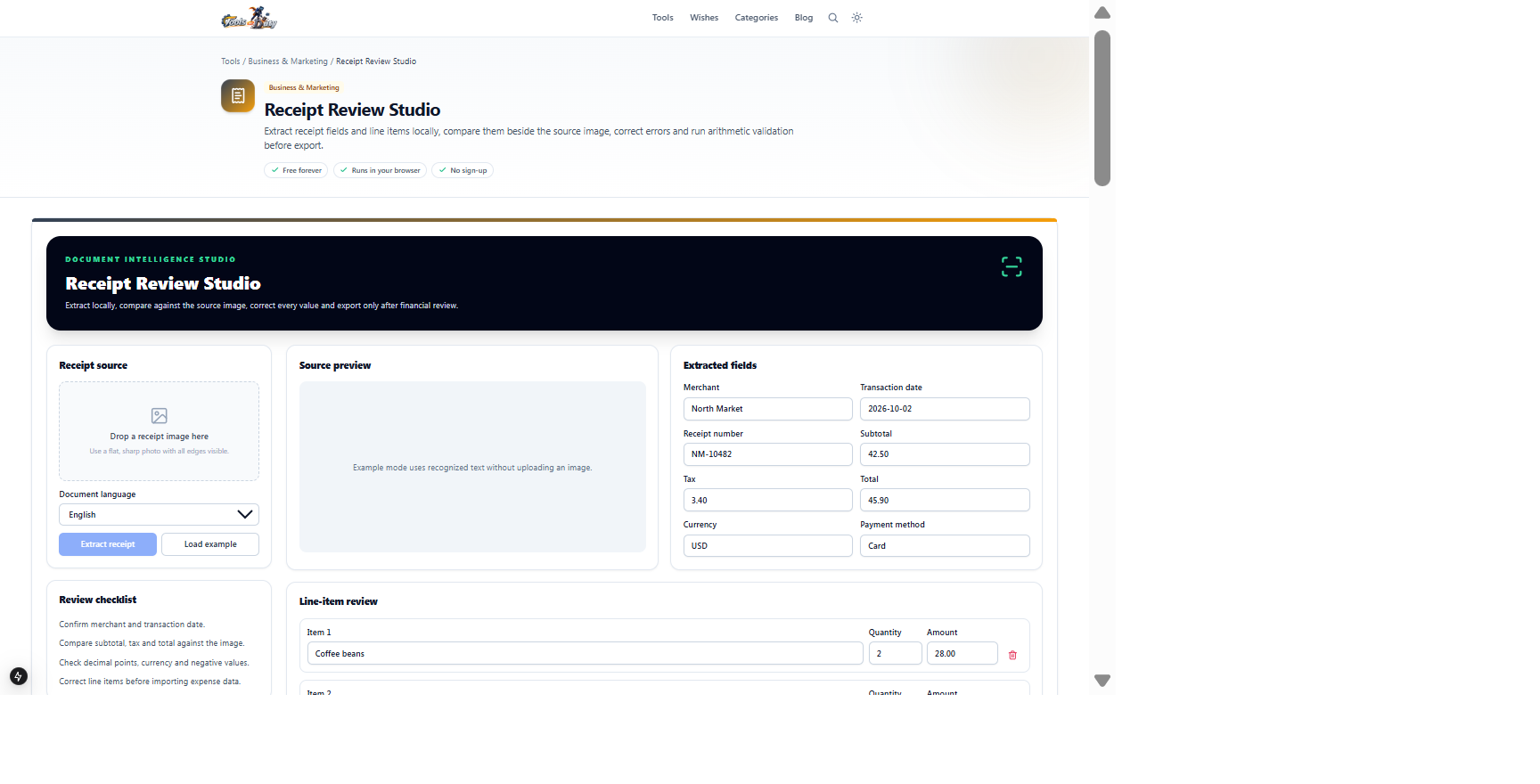
North Market sample receipt with three line items, subtotal, tax and totalEditable structured receipt data with arithmetic validation and CSV or JSON exportClick Load example to recreate this review state without OCR. Real receipt values must always be compared against the uploaded source image.
Frequently asked questions
- Are extracted totals guaranteed?
- No. OCR can confuse decimal points, digits and labels. Always compare financial values with the source image.
- What do the validation warnings check?
- The studio compares subtotal plus tax with total and compares detected item amounts with subtotal when enough numeric data is available.
- Can I edit line items?
- Yes. Descriptions, quantities and amounts are editable, and rows can be added or removed.
- Can it process invoices?
- Simple invoice images may partially work, but invoice-specific tools are better for multi-page or selectable PDFs.
- Does my receipt leave the browser?
- No. OCR and field extraction run locally after the language model loads.
- Why does the first extraction take longer?
- The selected OCR language model must be downloaded before recognition begins.
Continue your workflow
Open a related tool to prepare your files or refine the finished result.
- Image ToolsImage to Text
Extract editable text from photos, screenshots and scanned images with local OCR.
Open tool - Business & MarketingImage to Spreadsheet Studio
Extract a photographed table locally, compare it with the source image, correct individual cells and export a reviewed Excel workbook.
Open tool - PDF ToolsPDF to JSON
Convert PDF text and layout into structured JSON with pages, lines, cells and coordinates.
Open tool