
PDF size is often driven by embedded photographs, scanned pages, fonts, and duplicated resources. Compression can make a document easier to email or upload, but aggressive settings may blur small text and diagrams.
There is no single best setting for every PDF. A scanned receipt, a photo portfolio, and a text-based contract contain different data. Start with a balanced level and judge the output at normal reading size and at moderate zoom.
Why PDF file sizes differ
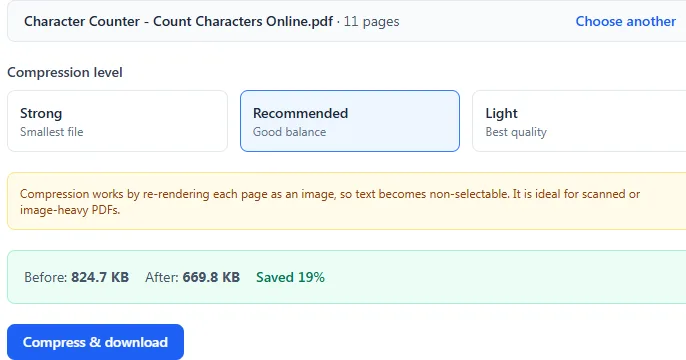
A text-first PDF can already be compact because letters are stored as font instructions. A scan stores every page as an image, so resolution and image quality dominate its size. Compressing an already optimized vector document can produce little improvement or even a larger file if pages are rasterized.
Before compression, note the original size and page count. This gives you a clear basis for judging whether the new file is genuinely better.
Choose the right compression level
Use light compression for documents with small print, charts, or screenshots where detail matters. Balanced compression suits general scans and mixed office documents. Strong compression is best reserved for preview copies or image-heavy files where a smaller transfer matters more than fine detail.
- Light: preserve detail and accept a larger output.
- Balanced: start here for most scanned documents.
- Strong: inspect text carefully before sharing.
- Keep the original because compression can be irreversible.
Check quality after compression
Open the output and inspect the smallest text, signatures, QR codes, thin chart lines, and photographs. Move through several pages instead of checking only the cover. If a QR code or barcode is included, scan it from the compressed version.
Also check whether text selection still matters for your use case. Compression methods that rebuild pages as images can make previously selectable text unavailable to search, copy, and accessibility tools.
When compression is not the answer
If only a few photographs make the PDF large, compress those source images before rebuilding the document. If unnecessary pages are present, delete them. If the recipient needs only selected pages, split the document instead of sending the entire file.
A smaller number is not automatically a better result. The useful output is the smallest file that remains clear, complete, and appropriate for its destination.
Try the related tools
Apply the steps from this guide directly in your browser.
Frequently asked questions
Why did my compressed PDF become larger?
The original may already contain efficient text and vector graphics. Rasterizing those pages into images can add more data than it removes.
Can compression make text blurry?
Yes. Lower render resolution and image quality reduce file size but can soften small text and fine lines. Always inspect the output.
Should I delete the original after compression?
No. Keep the original as the quality master because lost detail and selectable text may not be recoverable from the compressed copy.