
PDF is useful when a document must look consistent for readers who may not have the same fonts, office software, or device. Conversion fixes the visual result into pages, but it does not guarantee that every DOCX feature will reproduce perfectly.
This converter turns DOCX content into HTML and renders that layout as a PDF. Headings, paragraphs, lists, tables, and ordinary images generally transfer well. Complex text boxes, tracked changes, macros, and carefully controlled pagination may require manual layout fixes.
Prepare the Word document
Accept or reject tracked changes and remove comments that should not appear in the final document. Use standard heading styles, keep tables within page width, and resize oversized images before conversion.
Save the file as DOCX. The older DOC format uses a different binary structure and is not supported by many lightweight browser converters.
- Use common fonts or verify how replacements look.
- Insert deliberate page breaks instead of repeated blank lines.
- Add descriptive link text rather than displaying long raw URLs.
- Keep a copy of the editable DOCX as the source document.
Convert and preview the content
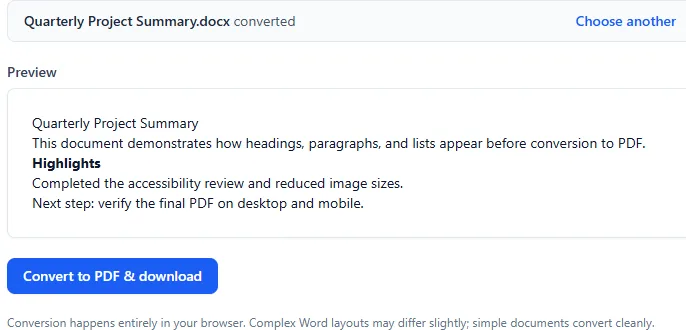
Choose the DOCX file and wait for the preview. Review the preview before creating the PDF because it reveals missing images, narrow tables, and unexpected spacing early. Then convert and open the downloaded PDF in a separate viewer.
Inspect the finished PDF
Check every page boundary, not only the text itself. A heading may be separated from its paragraph, a table row may move to another page, or a footer may appear differently. Verify links, page numbers, image clarity, and the final page count.
If exact legal or print fidelity is essential, compare the PDF side by side with the document in the original desktop application. Browser conversion prioritizes convenience and privacy over complete reproduction of every proprietary Word layout feature.
Choose another route when needed
Use HTML to PDF when the source is web content you control. Use Images to PDF for scanned pages or photographs. If the DOCX uses complex forms, embedded spreadsheets, or precise print templates, exporting directly from the application that created it is usually more reliable.
Try the related tools
Apply the steps from this guide directly in your browser.
Frequently asked questions
Can I convert an old DOC file?
The browser converter supports DOCX, not the older DOC format. Open the DOC in compatible office software and save it as DOCX first.
Why did the page breaks change?
Browser conversion uses web layout rules rather than the complete Word rendering engine. Font metrics, tables, and positioned elements can change pagination.
Does the conversion upload my Word file?
ToolsOnDuty performs the supported conversion in your browser, so the DOCX is not sent to a document conversion server.