
Merging PDFs is useful when invoices, reports, scanned forms, contracts, or appendices arrive as separate files but need to be shared as one document. The operation is simple, yet the final file can become confusing if covers and supporting pages are arranged incorrectly.
Decide the reading order before you press Merge. Remove duplicate drafts and use filenames that make the sequence obvious. After creating the combined file, check the first page, last page, transitions between files, and total page count.
Prepare the source files
Place the PDFs in one folder and rename them in sequence, such as 01-cover, 02-report, and 03-appendix. This makes the correct order visible even when a file picker sorts names automatically.
Open each source once before merging. Confirm that it is the right version, loads without an error, and does not contain blank pages or private notes that should not be shared.
- Keep an untouched copy of every original file.
- Remove password protection before combining files you are authorized to edit.
- Check page orientation, especially for scanned landscape pages.
- Use descriptive filenames instead of relying on download timestamps.
Arrange and merge the documents
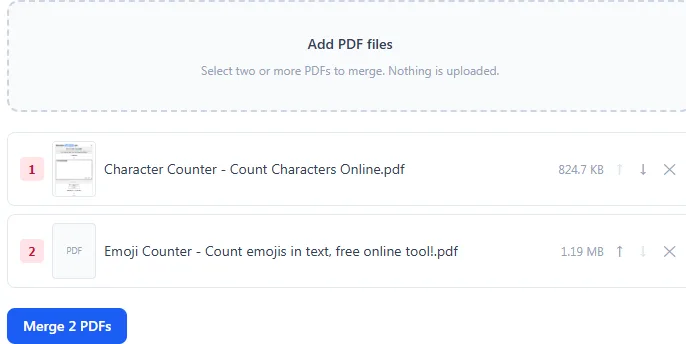
Add the files to the merger, then move them up or down until the list matches the intended reading order. The order of files determines the order of page groups in the output. Pages inside each source PDF normally retain their existing sequence.
These files may contain contracts, account details, or identity records. The ToolsOnDuty merger handles them on the page, so they do not need to be sent to a separate conversion service.
Verify the combined PDF
A successful download only confirms that a file was created. Open it in a second viewer and move through the pages. Check bookmarks and interactive forms separately because basic merging may not preserve every advanced feature from every source.
- Confirm the total page count matches the sources.
- Inspect every boundary where one source file ends and another begins.
- Search for a known phrase to confirm text remains selectable when expected.
- Use Organize PDF if individual pages need moving or rotation afterward.
Keep the final file manageable
Merging does not automatically reduce file size. A collection of image-heavy scans can produce a large result that is difficult to email. Compress only after the order is final, then compare readability with the original before deleting anything.
Use a clear final filename with a version or date. Avoid labels such as final-final because they make later updates difficult to identify.
Try the related tools
Apply the steps from this guide directly in your browser.
Frequently asked questions
Does merging PDFs reduce their quality?
A normal page-copy merge should preserve page content without recompressing it. Quality changes usually happen during a separate compression or rasterization step.
Can I change individual page order while merging?
A merger usually rearranges whole files. Use an organize tool afterward when pages from different documents need to be interleaved.
Are uploaded PDF files private?
That depends on the service. ToolsOnDuty performs supported PDF operations in your browser, so the files are not uploaded to a conversion server.